Is Instagram Down? Unraveling the Latest Outages & Common App Problems
Few things are as frustrating in our hyper-connected world as reaching for our phones to scroll through Instagram, only to be met with a blank screen, a frozen feed, or an error message. The instant thought for millions worldwide is often, "Is Instagram down?" While widespread outages do occur, many of the frustrating hiccups we encounter daily might be localized issues or common software glitches – what many users colloquially refer to as an "Instagram bug." Understanding the difference, and knowing how to troubleshoot, can save you a lot of headache.
This comprehensive guide will help you navigate the common problems plaguing Instagram users, from minor inconveniences to major service interruptions. We'll explore the tell-tale signs of an outage, dive into specific "Instagram bug" manifestations, and equip you with practical steps to get your favorite photo-sharing app back up and running.
Diagnosing the Problem: Is It You, Or Is It Instagram?
When Instagram acts up, the first step is always to figure out the scope of the problem. Is it a global blackout, affecting everyone? Or is the "Instagram bug" confined to your device or network? Pinpointing the source is crucial for effective troubleshooting.
*
Check Official Channels: The most reliable source for information on an official outage is Instagram itself. While they don't always issue immediate public statements for minor glitches, they will typically post updates on their official X (formerly Twitter) account (@InstagramComms or @instagram).
*
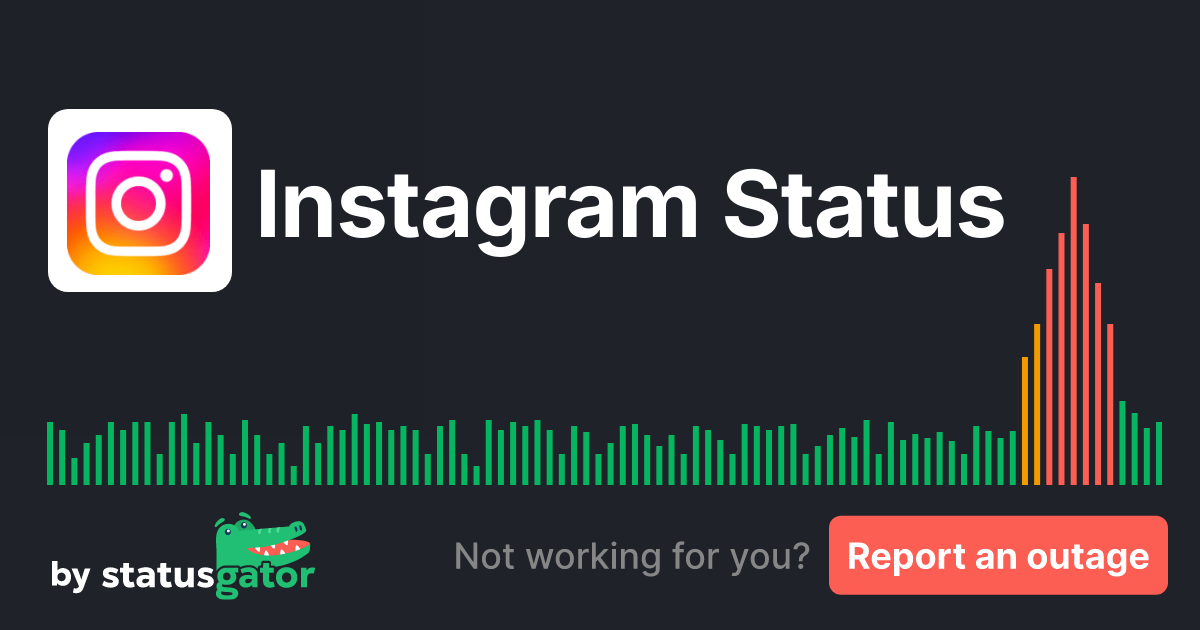
Consult Third-Party Status Trackers: Websites like DownDetector or IsDown aggregate user reports from around the world. If you see a sudden spike in reported issues in your region or globally, it's a strong indicator of a widespread outage. These sites can often provide real-time maps showing affected areas and a timeline of reports.
*
Ask Your Friends: A quick text or chat with friends who also use Instagram can provide immediate confirmation. If they're experiencing the same issues, it's likely a broader problem.
*
Verify Your Internet Connection: Before jumping to conclusions about an "Instagram bug," always ensure your own internet connection is stable. Try opening other apps or websites. If they also fail to load, the problem is with your Wi-Fi or mobile data, not Instagram.
Understanding the difference between a widespread system crash and a personal device issue is the critical first step to resolving any
Instagram bug you might encounter.
Common "Instagram Bug" Manifestations & What They Mean
The term "Instagram bug" can encompass a wide range of issues, from minor annoyances to complete service disruptions. Based on user reports and recurring patterns, here are some of the most frequently reported problems:
*
Sign-In Problems: You enter your credentials, but the app just won't let you in, showing an error message like "Unknown network error" or simply freezing. This can be particularly frustrating as it completely locks you out. Sometimes this points to account-specific issues, but often it's tied to server authentication problems. For a deeper dive into this and other critical issues, you might find our related article,
Major Instagram Issues: Sign-In, Connectivity, Server & Message Delays, particularly helpful.
*
App Not Loading or Feed Not Refreshing: The app opens, but your feed remains blank, perpetually showing a loading spinner, or displaying old content without refreshing. This is a classic symptom of connectivity problems between your app and Instagram's servers, or even a local caching issue.
*
Connectivity Issues & Server Not Responding: General error messages indicating that Instagram cannot connect to its servers. This can manifest as an inability to post, send messages, or view stories. These are strong indicators of server-side "Instagram bugs" or network congestion.
*
Error Messages: Beyond specific sign-in errors, you might encounter generic messages like "Could not refresh feed," "Something went wrong," or codes that offer little explanation. These often point to temporary glitches within the app's interaction with the server.
*
Slow Performance: The app is unusually sluggish, takes ages to load content, or lags when you try to scroll. While sometimes a device issue, slow performance can also be a sign that Instagram's servers are under strain.
*
Inability to Download or Upload Content: You can't post a new photo or video, or download a reel from your feed. This points to issues with data transfer, either from your device to the server or vice-versa.
*
Messages Not Loading or Delayed: Direct Messages (DMs) appear empty, new messages don't come through, or your sent messages take an unusually long time to be delivered. This can be a particularly annoying "Instagram bug" for those relying on DMs for communication. For more detailed insights into these specific chat and feed issues, check out our article:
Instagram Problems: Why Your Feed Isn't Loading or Chats Delay.
*
Website Unavailable or Displaying Errors: If you try to access Instagram through a web browser and encounter similar issues, it further suggests a server-side problem rather than an app-specific bug.
*
Issues Accessing Specific Features: Perhaps your Stories won't load, Reels keep buffering, or you can't access the Explore page. This can indicate a specific component of the Instagram infrastructure is experiencing a localized "Instagram bug."
Understanding these different symptoms helps you diagnose whether you're dealing with a minor app glitch, a network problem, or a wider Instagram outage.
Troubleshooting Your Way Out of an "Instagram Bug"
Before you resign yourself to an Instagram-less existence, there are several steps you can take to try and resolve the "Instagram bug" you're facing. These tips start with the simplest solutions and move to more comprehensive fixes.
1.
Check Your Internet Connection:
*
Toggle Wi-Fi/Mobile Data: Turn off your Wi-Fi and then turn it back on. If you're on mobile data, switch to Wi-Fi if available, or vice-versa.
*
Restart Router/Modem: Sometimes, the issue lies with your home network. Power cycling your router can resolve many connectivity problems.
*
Run a Speed Test: Ensure your internet speed is adequate for streaming and loading content.
2.
Restart the Instagram App:
* Completely close the Instagram app (swipe it away from your recent apps list) and then reopen it. This can clear temporary glitches.
3.
Restart Your Device:
* A classic troubleshooting step that often works wonders. Turning your phone or tablet off and on again can resolve various software conflicts and memory issues causing an "Instagram bug."
4.
Check for App Updates:
* Outdated app versions can harbor bugs that have already been fixed. Go to your device's app store (Google Play Store for Android, Apple App Store for iOS) and check if there's an update available for Instagram. Always keep your apps updated for optimal performance and security.
5.
Clear Instagram's Cache and Data:
* Over time, cached data can become corrupted and cause performance issues or specific bugs.
*
Android: Go to Settings > Apps (or Apps & Notifications) > Instagram > Storage > Clear Cache, then Clear Data (note: clearing data will require you to log back in).
*
iOS: Unfortunately, iOS doesn't offer a direct "Clear Cache" option for individual apps. You might need to offload or delete and reinstall the app (see next step).
6.
Reinstall the Instagram App:
* If clearing the cache doesn't work, uninstalling Instagram completely and then reinstalling it from the app store can resolve deep-seated "Instagram bugs" or corrupted installation files. Remember your login credentials before doing this!
7.
Check Device Storage:
* If your phone is running critically low on storage, apps can struggle to function correctly. Free up some space by deleting unnecessary files or apps.
8.
Review App Permissions:
* Ensure Instagram has all the necessary permissions (e.g., storage, camera, microphone) to function properly. You can check this in your device's app settings.
9.
Disable VPN (if using one):
* Sometimes, VPNs can interfere with app connectivity. Try temporarily disabling your VPN to see if Instagram starts working.
10.
Try Instagram on a Different Platform:
* Access Instagram through a web browser on your computer or phone. If it works there, the issue is definitely localized to your app or device. You could also try Instagram Lite if available for your device.
If, after trying these steps, the
Instagram bug persists and you've confirmed your internet is working, it's highly likely to be a widespread outage or a specific server-side issue that only Instagram can resolve.
Staying Informed During Outages & Future-Proofing Your Experience
When Instagram is experiencing a major outage, individual troubleshooting can only go so far. In these scenarios, patience and staying informed are key.
*
Monitor Reliable Status Pages: Continue to check third-party status websites like DownDetector or IsDown for real-time updates and community reports. These are often faster than official announcements.
*
Follow Instagram's Official Channels: Keep an eye on Instagram's official communications accounts on platforms like X (Twitter) for formal statements and estimated resolution times.
*
Engage with the Community: Search relevant hashtags on X (#InstagramDown, #InstagramBug) to see if others are experiencing the same issues. Sometimes, users share workarounds or unofficial updates.
*
Digital Detox or Alternative Platforms: While waiting for Instagram to come back online, consider it an opportunity for a brief digital detox. Or, explore other social media platforms if you need to connect with your audience or friends.
To help future-proof your Instagram experience and minimize the chances of encountering persistent "Instagram bugs," consider these practices:
*
Keep Your Operating System Updated: Ensure your phone's operating system (iOS or Android) is always updated to the latest version. OS updates often include critical security patches and performance improvements that can prevent app conflicts.
*
Maintain Sufficient Device Storage: Regularly clear out old photos, videos, and unused apps to ensure your device has ample free space. This helps all apps, including Instagram, run smoothly.
*
Use a Stable Internet Connection: Whenever possible, connect to reliable Wi-Fi networks. If relying on mobile data, ensure you have a strong signal.
*
Report Persistent Bugs: If you encounter a persistent "Instagram bug" that isn't a widespread outage, use the in-app reporting feature to inform Instagram's developers. Your feedback helps them identify and fix issues.
Conclusion
Encountering an "Instagram bug" or a complete service outage can be incredibly frustrating, especially when Instagram is a central part of your daily routine, business, or creative outlet. By understanding the common signs of trouble, diligently troubleshooting with the steps provided, and staying informed through reliable channels, you can minimize downtime and quickly ascertain whether the problem lies with your device or with Instagram's vast global infrastructure. Remember, while some issues are beyond your control, many can be resolved with a few simple actions. Most importantly, remain patient; even the biggest social media platforms occasionally need a moment to refresh and come back stronger.